Website Migration: How to Move a Site to a New Host
By MinniHost Guides Editorial Team Posted Topic: Moving a Site
Website migration is moving a site from one place to another: most often to a new host, sometimes to a new domain, platform or design. A host-to-host move keeps your URLs and needs a copy, a test, a DNS switch and monitoring. Back up first, test on the new host before changing anything public, and keep the old host running until its traffic reaches zero.

Website migration is moving a site from one place to another, and for a small site that usually means a new host. This guide is the hub for moving a site: it covers the host-to-host process end to end, then points you to the migration SEO checklist and the WordPress migration guide. MinniHost Guides is an editorial site; we do not offer migration services.
What website migration means
Three different things share the name:
- Host move: same domain and URLs, new server. This guide’s focus.
- Platform move: a different CMS or builder, which usually changes URLs and templates.
- Domain or URL change: new domain or new paths. Google’s separate guidance for moves with URL changes applies, and the SEO checklist covers it.
A redesign is a fourth case with its own risks. Domain registration and DNS record details are outside this site’s scope.
Plan: inventory, backups, downtime window, rollback
- Inventory everything on the old host: site files, databases, email accounts, cron jobs, redirects, certificates and any scripts that call the site.
- Back up files and database and keep a copy off the old server. See WordPress documentation for the WordPress case: a backup needs both parts.
- Pick a quiet time for the switch, and for stores or forums decide how to handle orders or posts made during the change.
- Write a rollback plan: the old host stays untouched, so reverting DNS puts you back.
The host-to-host move in nine steps
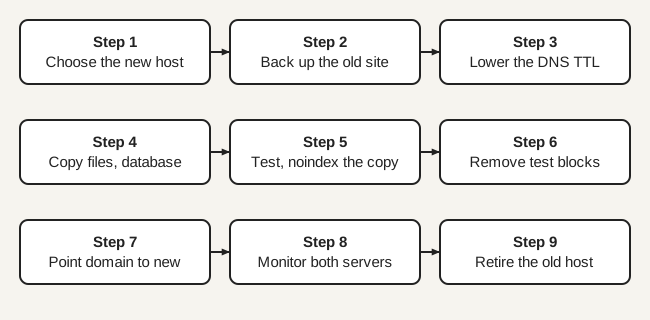
- Choose the new host using the neutral host checklist.
- Back up the old site.
- Lower the DNS TTL to a low value, such as a few hours, at least a week before the move, as Google advises.
- Copy files and database to the new host. For the control panel route, see what cPanel is.
- Add a noindex rule to the test copy and test on the new host (next section).
- Remove temporary robots.txt blocks and noindex rules.
- Update DNS to point to the new host.
- Monitor logs on both servers and Search Console.
- Keep the old host until its traffic reaches zero, then shut it down.
Test before you switch
Test pages, images, forms and downloads on the new host using an IP-restricted environment or a temporary hostname, as Google suggests, and make sure Googlebot is not blocked by a firewall. A hosts-file override on your own computer, which points the domain at the new server for you alone, is another way to preview it. Keep Search Console verification working in the copy.
Cutover and what to watch afterward
After the DNS change, expect Googlebot’s crawl rate to dip briefly and then rise over a few days. Check that DNS has propagated using several public tools, look at server logs on both servers, and watch the Index coverage report. Traffic should fall on the old host and rise on the new one.
Things people forget
- Email: mailboxes and mail routing may live on the old host. See email hosting and email on your own domain.
- Cron jobs and scheduled tasks.
- SSL certificates: the new host needs its own. See what an SSL certificate is.
- Redirect rules and server config such as .htaccess.
- robots.txt and noindex leftovers from testing.
- Search Console verification files or tags.
- Absolute URLs and database references if the address changes. For WordPress, WordPress documentation warns never to change the GUID column and recommends tools that handle serialized data.
When to hire help
If your site handles orders, custom code or large mail volumes, consider a professional. Ask what they will back up, how they test, how they handle the DNS switch and how they hand back credentials. We offer no migration service.
Checklist summary
- Inventory, back up, plan rollback.
- Lower TTL a week ahead.
- Copy, test, noindex the test site.
- Remove blocks, switch DNS.
- Monitor, keep the old host until traffic is zero.
- Email, cron, SSL and redirects confirmed.
Sources re-opened and compared with this text by the MinniHost Guides team on 2026-11-17. MinniHost Guides is an independent editorial site and does not sell hosting.
All Migration guides
- How to Migrate a WordPress Site to a New Host
Move WordPress to a new host: back up files and database, copy them, update wp-config.php, test, switch over, fix URLs safely and keep a rollback plan.
- Website Migration SEO Checklist: Keep Your Rankings
A website migration SEO checklist based on Google site-move guidance: URL maps, 301 redirects, robots.txt, sitemaps, Search Console checks and monitoring.
Your questions answered
What is website migration?
Website migration is the process of moving a website to a different host, domain, platform or design. The most common kind is a host move, where files, database and settings are copied to a new server and the domain is pointed at it. The URLs stay the same, which makes it the lowest-risk type for search visibility.
How long does a website migration take?
The copy and test can take hours for a small site, but allow days for the whole process. Google advises lowering the DNS TTL at least a week ahead, and you should keep the old host running until its traffic drops to zero. Larger sites and moves with URL changes take longer to settle in search.
Will migrating hosts hurt my SEO?
A host move that keeps the same URLs should not harm rankings if the new site is reachable, fast and unblocked. Google expects a temporary drop in crawl rate right after launch, which then recovers over the next few days. Avoid leaving noindex or robots.txt blocks from testing in place, and monitor Search Console.
Do I need downtime to move my site?
Not necessarily. If you copy and test the site on the new host first, then change DNS, visitors reach either server while the change spreads, so there is little or no visible downtime. Sites with changing data, such as stores or forums, need a plan for orders and posts made during the switch.
What should I back up before migrating?
Back up all site files and the database, and export anything stored outside them, such as mailboxes, cron jobs, redirect rules and certificates. WordPress documentation says to back up the directory, images, plugins, other files and the database, and to keep the old database copy in case you need to restore. Store a copy off the old server.
Where this comes from
- Google Search Central: Site move without URL changes (developers.google.com)
- Google Search Central: Site move with URL changes (developers.google.com)
- WordPress Advanced Administration: Moving WordPress (developer.wordpress.org)
- WordPress Advanced Administration: Backups (developer.wordpress.org)
- How to Migrate a WordPress Site to a New Host
Move WordPress to a new host: back up files and database, copy them, update wp-config.php, test, switch over, fix URLs safely and keep a rollback plan.
- Website Migration SEO Checklist: Keep Your Rankings
A website migration SEO checklist based on Google site-move guidance: URL maps, 301 redirects, robots.txt, sitemaps, Search Console checks and monitoring.